Network Mechanism and VPN
Network Data Transmission Mechanism
Direct Connection Mode
When the terminal device's network environment has IPv6/NAT3, LCMD MicroServer will establish direct data transmission connections with user devices. At this time, the client status icon will display as blue, indicating it's in direct transmission state. If the terminal device's network environment doesn't have a public IP address, the system will automatically provide free network penetration services based on NAT network conditions.
Relay Service
In cases where the network environment is poor, the system will automatically switch to free relay data transmission services. Due to the use of end-to-end encryption technology (TLS1.3/noise), the data transmission content is invisible to any third party including the platform operation team, ensuring user data security. In relay transmission state, the client status icon will display as yellow.
Network Penetration Service Scope
LCMD penetration service belongs to the system network layer, and all applications including official applications will automatically support it, including:
- All applications listed on the platform app store
- Applications developed independently by developers
- Virtual machines built by developers
This service ensures users can conveniently access LCMD cloud computing services globally.
VPN Coexistence Solution
The LCMD client internal test version already supports two operation modes: Global Mode (VPN Tun) and Client Mode (Proxy).
- Global Mode: More friendly for non-technical users, all applications in the terminal can access LCMD resources
- Client Mode: More convenient for technical users, can harmoniously resolve dual VPN conflicts
Android Platform Background Persistence
On the Android platform, LCMD applications and LCMD client are not in the same APK, so if using Client Mode (Proxy), the LCMD client needs to be kept in the background. Not keeping it persistent will cause unnecessary network errors when the LCMD MicroServer client is terminated by the phone system background.
Methods for Android system background persistence, using Vivo phone as an example:
- Swipe up from the bottom of the screen to switch to the window switching interface
- Click the small triangle at the top of the LCMD MicroServer client window, and select the
Lockmenu item from the popup menu to keep the client in the background - Note that both the LCMD MicroServer client and Lazycat applications need to be locked for persistence, such as Lazycat Photos, Lazycat Cloud Storage, etc.
Additionally, the Android platform can use the Shelter solution to achieve VPN dual-opening through the principle of dual workspace.
Third-party Applications Accessing LCMD Resources
If you need to access LCMD resources outside the client, such as VidHub local client, SSH client, etc.
After using Client Mode, these third-party applications cannot access LCMD resources. At this time, you need to add the local proxy http://127.0.0.1:31085 provided by the LCMD client to your proxy software, and forward heiyu.space domain traffic to this address.
Additionally, if you are an iOS client, because the LCMD client cannot stay in the background (will be disconnected within 10 seconds after switching to background), you also need to enable LCMD background persistence (Open LCMD client -> About -> Find Device)
Reducing Network Impact on LCMD MicroServer
After using Client Mode (Proxy) on mobile devices or running other VPN software on PC, it will seriously interfere with the LCMD MicroServer client's work. You need to further configure the following to minimize interference:
- Return real IP for ".heiyu.space" and ".lazycat.cloud" in DNS without any interference.
- If the third-party VPN belongs to tun mode (iOS/macOS are both tun mode, Android/Linux/Windows need to check specific software), then add
6.6.6.6/32and2000::6666/128to the TUN bypass routing rules. (Some proxy software doesn't have this function, this mainly affects hole punching direct connection logic) - Add
fc03:1136:3800::/40to the direct connection rules - (Optional) Let fc03:1136:3800::1 resolve heiyu.space DNS
Configurations 1 and 2 correspond to some keywords in different software:
- fake-ip-filter, always-real-ip. After successful adjustment, in command line:
dig AAAA LCMD_name.heiyu.spaceshould see output likefc03:1136:38bb:5ee2:44bb:7479:f44e:0dig A hello.lazycat.cloudshould see normal public network IP like43.139.3.150. If it's198.x.x.x, it's not configured correctly yet.
- tun.route-exclude-address, tun-excluded-routes. After successful adjustment,
ip route get 6.6.6.6in command line should see normal LAN exit, not 198.18.0.1 etc.
6.6.6.6
6.6.6.6 and 2000::6666 are not official servers, and no actual network requests will be made to these two IPs.
These two IPs are just ordinary public network IPs. The LCMD client will use UDP Dial 6.6.6.6 to detect local network exit, to determine at minimum cost whether there is currently a local area network.
When third-party proxy software exists, this IP can also serve as a bridge to let users make targeted rule configurations, so that the LCMD client can correctly obtain LAN exit IP, etc., otherwise all hole punching logic will fail.
Router Settings
Do not enable secure-related options for upnp
Do not enable DMZ, as enabling it will automatically disable the router's upnp
Client Proxy Mode Optimization Solution
Keep-Alive Solution
In non-VPN mode, the operating system may automatically clean up background applications according to resource management policies. To ensure stable client operation and avoid being closed due to system automatic cleanup, please configure according to the following optimization methods.
Optimization tutorials:
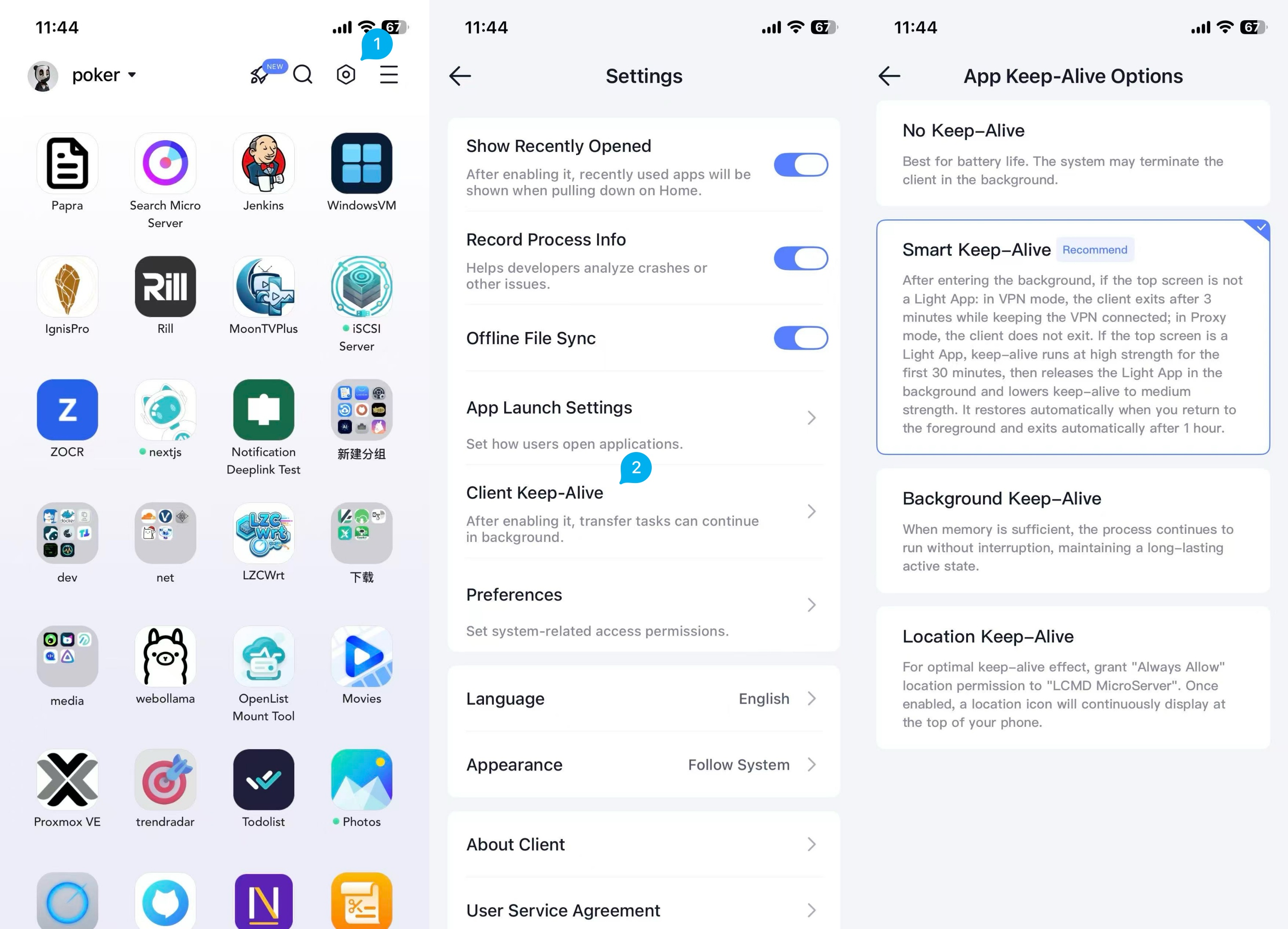
iOS Keep-Alive Graphic Tutorial
Android Keep-Alive Graphic Tutorial
After opening other VPN software, the network feels slower, what to do
The yellow small globe icon on the client homepage indicates that the current network speed is slow. If you want to improve network speed, you can refer to the following community graphic tutorials to ensure VPN rules allow LCMD MicroServer, making the network smooth and unobstructed.
Optimization tutorial: PeppaPig
iOS Keep-Alive Graphic Tutorial
Android Keep-Alive Graphic Tutorial
Due to the variety of Android phone manufacturers, for phone manufacturers not covered below, please move to the VIP group for communication
Xiaomi phones:
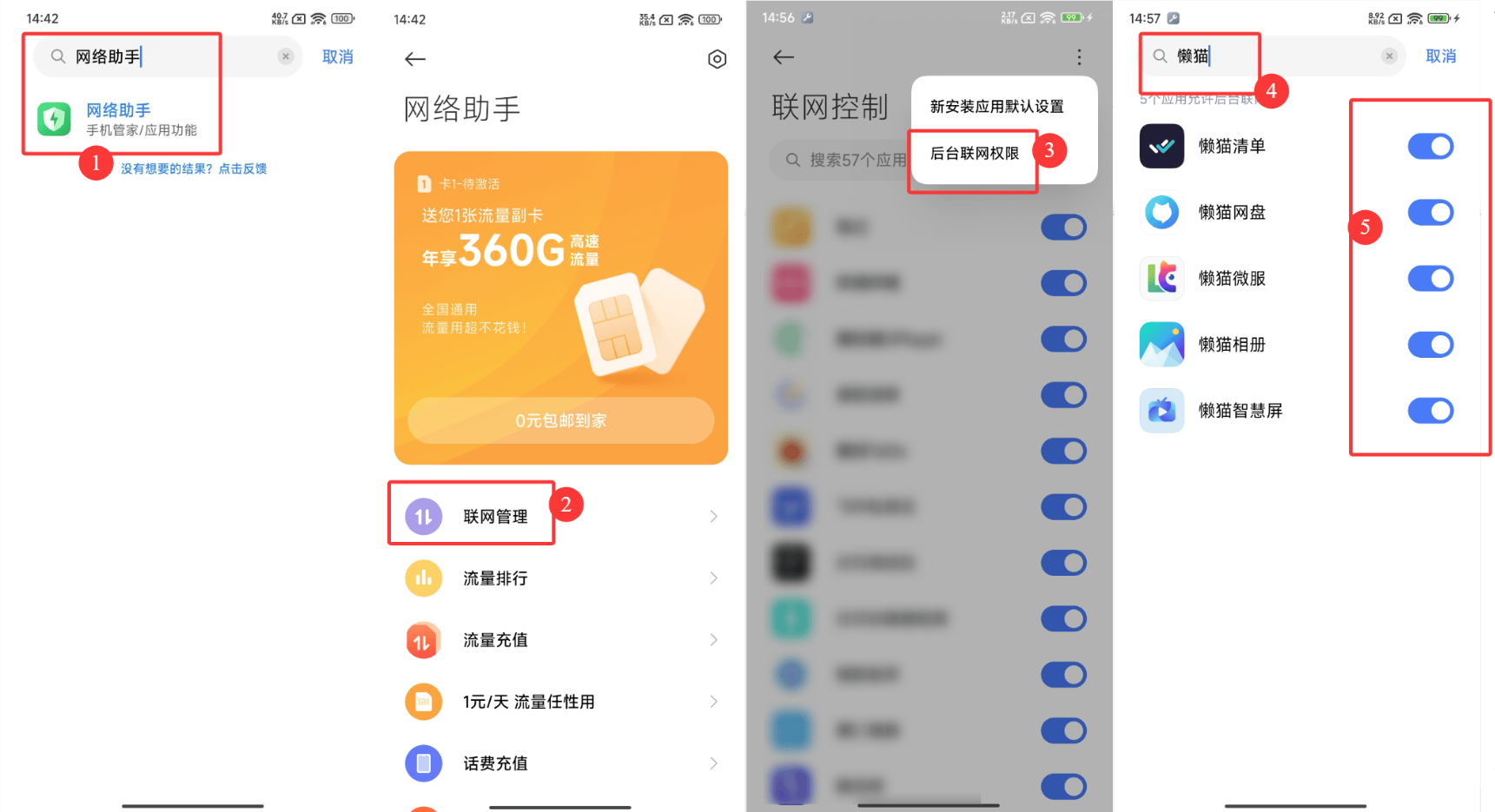
Allow background traffic usage
Xiaomi Hyper OS
- Search for Network Assistant in Settings -> Open Assistant, click Network Management -> Click Background Network Permission in the top right -> Search for LCMD MicroServer -> Click the right button to allow (only need to enable LCMD MicroServer)
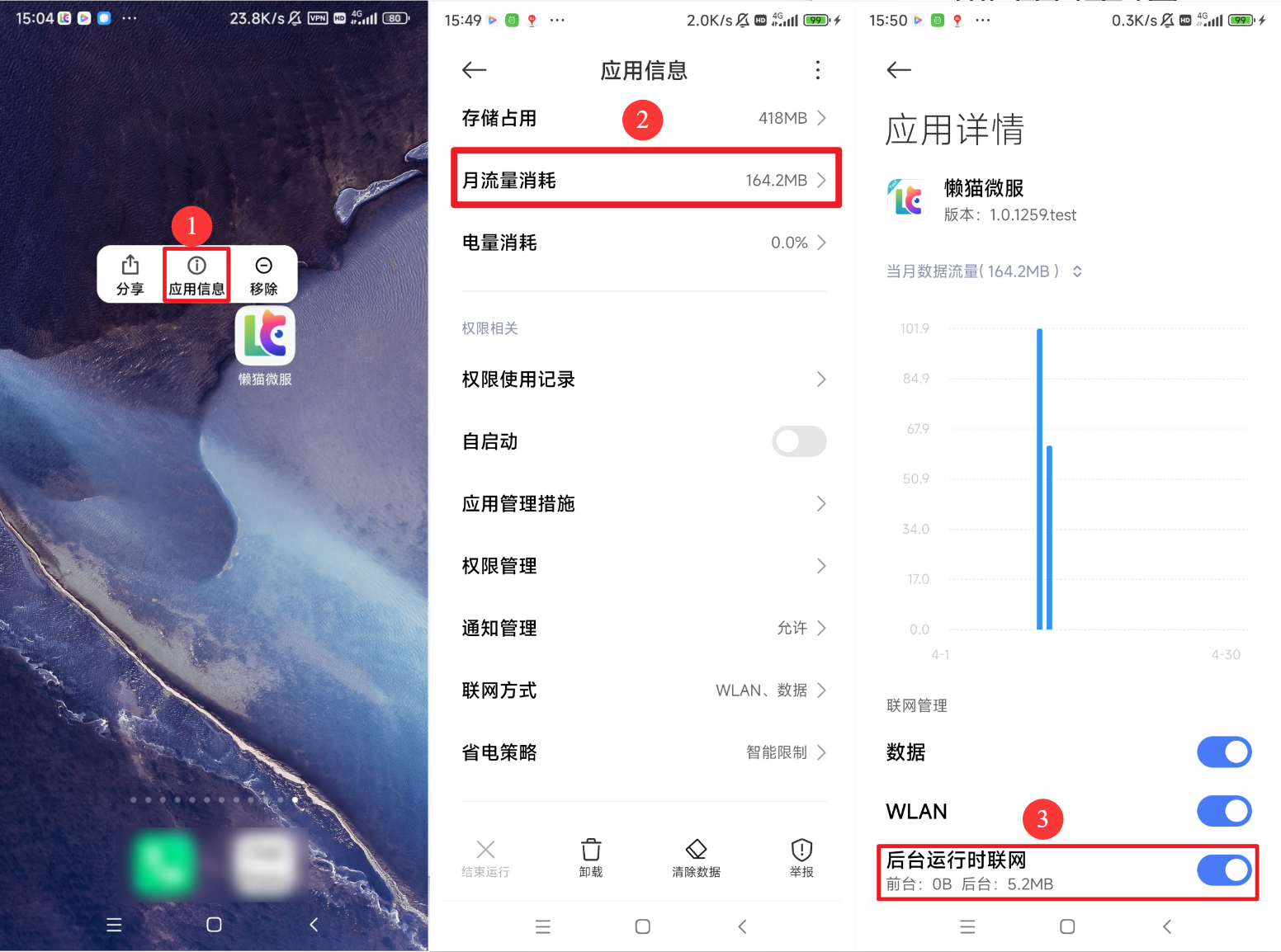
Xiaomi MIUI System
- Long press LCMD MicroServer to enter app details -> Click Monthly Traffic Consumption -> Allow background network access
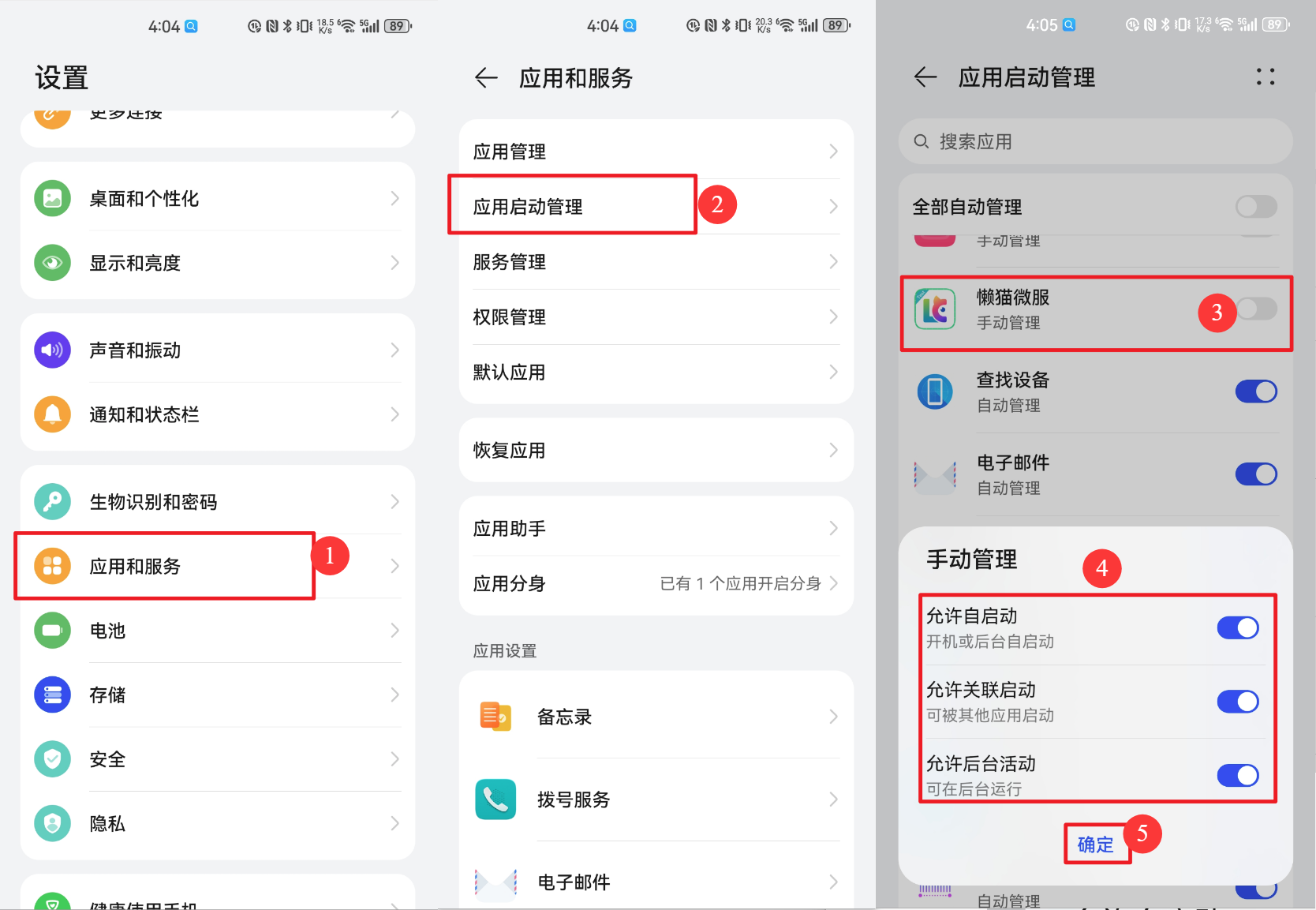
Huawei phones/Honor phones
Open Settings -> Apps and Services -> App Launch Management -> Search for LCMD MicroServer, click the switch on the right -> Click the button on the right: After popup manual management, select the three options below
OPPO/Realme phones
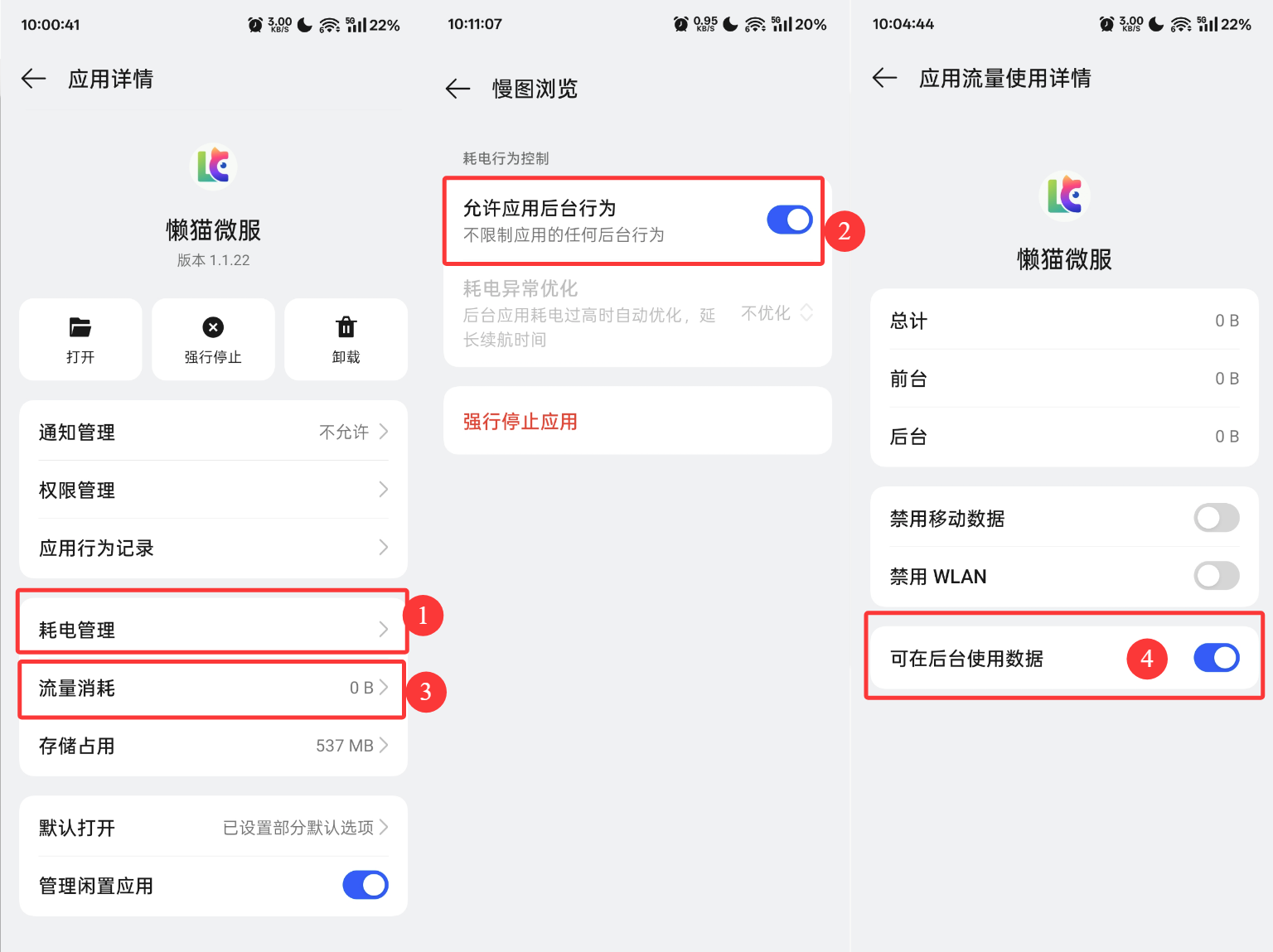
Long press app to open app details -> Open Power Management -> Allow app background behavior Long press app to open app details -> Open App Traffic -> Can use data in background
Other
The above all have 2 settings: 1 is to allow LCMD MicroServer to run in the background, and the other is to allow background network access permission.
lzc-apk-shell applications all depend on the LCMD MicroServer client. At this time, the client is in the background and needs to use traffic to connect to LCMD, otherwise in Photos, Cloud Storage cannot connect to LCMD, causing LCMD MicroServer applications to be unusable.