First VNC Application
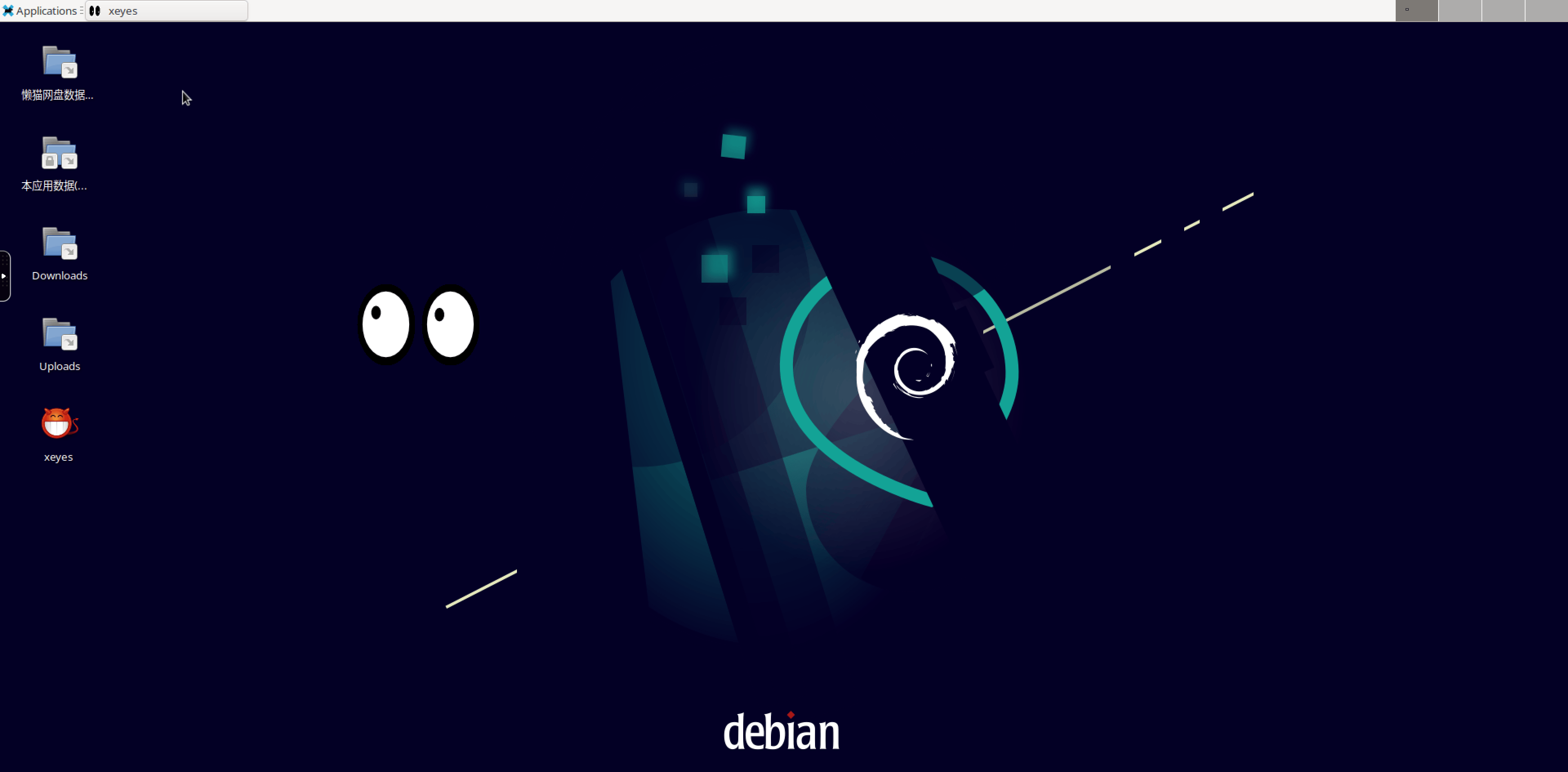
Follow this tutorial, and you will install your own VNC application on LCMD, with the effect shown in the image above. Supports reading and writing LCMD Cloud Drive content, supports auto-start applications on boot.
This tutorial is just a basic configuration tutorial. All content is in lzc-vnc-sample. If you need to see more complex configurations, please see lzc-im-all-in-one
📂 1. Prepare Configuration Files
1.1 DOCKERFILE File
# Pull base image.
FROM registry.lazycat.cloud/kasm-debian-bookworm:0.0.1
USER root

# Add new user and user group
RUN usermod -l lazycat kasm-user
# Add permissions for the new user
RUN echo 'lazycat ALL=(ALL) NOPASSWD: ALL' >> /etc/sudoers
ENV HOME /home/lazycat
WORKDIR $HOME

# Install applications
RUN apt-get update; apt install -y x11-apps;

# Modify original script content, replace kasm_user string in script with lazycat, modify to new user
RUN sed -i 's/kasm_user/lazycat/g' /dockerstartup/vnc_startup.sh
RUN sed -i '5i sudo chown -R lazycat:kasm-user /home/lazycat/' /dockerstartup/kasm_default_profile.sh

RUN cat /dockerstartup/kasm_default_profile.sh

# Copy content and modify file ownership, see corresponding files in specific paths for file content
COPY --chown=lazycat:kasm-user kasmvnc.yaml /home/lazycat/.vnc/kasmvnc.yaml
COPY --chown=lazycat:kasm-user desktop/X11-Xeyes.desktop /home/lazycat/Desktop/
COPY --chown=lazycat:kasm-user mount-mappied /home/lazycat/

# autostart implements auto-start software and auto-start scripts on boot
COPY --chown=lazycat:kasm-user desktop/X11-Xeyes.desktop /home/lazycat/.config/autostart/
COPY --chown=lazycat:kasm-user desktop/startup-script.desktop /home/lazycat/.config/autostart/
COPY --chown=lazycat:kasm-user startup-script.sh /home/lazycat/.config/autostart/

# Modify corresponding script permissions. Scripts will not run normally if permissions are incorrect (please check permission issues)
RUN chmod +x /home/lazycat/mount-mappied
RUN chmod +x /home/lazycat/.config/autostart/startup-script.sh
RUN chmod +x /home/lazycat/Desktop/*.desktop
RUN chmod +x /home/lazycat/.config/autostart/*.desktop

# Disable authentication to optimize remote desktop experience
ENV VNCOPTIONS "-PreferBandwidth -disableBasicAuth -DynamicQualityMin=4 -DynamicQualityMax=7 -DLP_ClipDelay=0 -sslOnly=0"
ENV VNC_PW lazycat

USER lazycat
# Pull base image.
FROM registry.lazycat.cloud/kasm-debian-bookworm:0.0.1
USER root
# Add new user and user group
RUN usermod -l lazycat kasm-user
# Add permissions for the new user
RUN echo 'lazycat ALL=(ALL) NOPASSWD: ALL' >> /etc/sudoers
ENV HOME /home/lazycat
WORKDIR $HOME
# Install applications
RUN apt-get update; apt install -y x11-apps;
# Modify original script content, replace kasm_user string in script with lazycat, modify to new user
RUN sed -i 's/kasm_user/lazycat/g' /dockerstartup/vnc_startup.sh
RUN sed -i '5i sudo chown -R lazycat:kasm-user /home/lazycat/' /dockerstartup/kasm_default_profile.sh
RUN cat /dockerstartup/kasm_default_profile.sh
# Copy content and modify file ownership, see corresponding files in specific paths for file content
COPY --chown=lazycat:kasm-user kasmvnc.yaml /home/lazycat/.vnc/kasmvnc.yaml
COPY --chown=lazycat:kasm-user desktop/X11-Xeyes.desktop /home/lazycat/Desktop/
COPY --chown=lazycat:kasm-user mount-mappied /home/lazycat/
# autostart implements auto-start software and auto-start scripts on boot
COPY --chown=lazycat:kasm-user desktop/X11-Xeyes.desktop /home/lazycat/.config/autostart/
COPY --chown=lazycat:kasm-user desktop/startup-script.desktop /home/lazycat/.config/autostart/
COPY --chown=lazycat:kasm-user startup-script.sh /home/lazycat/.config/autostart/
# Modify corresponding script permissions. Scripts will not run normally if permissions are incorrect (please check permission issues)
RUN chmod +x /home/lazycat/mount-mappied
RUN chmod +x /home/lazycat/.config/autostart/startup-script.sh
RUN chmod +x /home/lazycat/Desktop/*.desktop
RUN chmod +x /home/lazycat/.config/autostart/*.desktop
# Disable authentication to optimize remote desktop experience
ENV VNCOPTIONS "-PreferBandwidth -disableBasicAuth -DynamicQualityMin=4 -DynamicQualityMax=7 -DLP_ClipDelay=0 -sslOnly=0"
ENV VNC_PW lazycat
USER lazycat1.2 startup-script.sh
#!/bin/bash
set -ex

mkdir -p /home/lazycat/lzc-home

# Map permissions: For details, see: https://github.com/brauner/mount-idmapped
sudo /home/lazycat/mount-mappied --map-mount b:0:1000:1 /lzcapp/run/mnt/home /home/lazycat/lzc-home

# Map corresponding directories to desktop
ln -svfn /lzcapp/var '/home/lazycat/Desktop/Application Data (Read/Write Supported)'
ln -svfn /home/lazycat/lzc-home '/home/lazycat/Desktop/LCMD Cloud Drive Data (Read/Write Supported, Please Operate with Caution)'
#!/bin/bash
set -ex
mkdir -p /home/lazycat/lzc-home
# Map permissions: For details, see: https://github.com/brauner/mount-idmapped
sudo /home/lazycat/mount-mappied --map-mount b:0:1000:1 /lzcapp/run/mnt/home /home/lazycat/lzc-home
# Map corresponding directories to desktop
ln -svfn /lzcapp/var '/home/lazycat/Desktop/Application Data (Read/Write Supported)'
ln -svfn /home/lazycat/lzc-home '/home/lazycat/Desktop/LCMD Cloud Drive Data (Read/Write Supported, Please Operate with Caution)'1.3 kasmvnc.yaml
network:
  ssl:
    pem_certificate: ${HOME}/.vnc/self.pem
    pem_key: ${HOME}/.vnc/self.pem
    require_ssl: false
  udp:
    public_ip: 127.0.0.1

runtime_configuration:
  allow_override_standard_vnc_server_settings: false
  allow_client_to_override_kasm_server_settings: false
  allow_override_list: []  # Prohibit client from overriding any options

encoding:
  max_frame_rate: 60  # Maximum frame rate
  full_frame_updates: 60  # Always full frame updates to ensure lossless consistency

  video_encoding_mode:
    jpeg_quality: -1  # Disable video encoding mode
    webp_quality: -1
    max_resolution:
      width: 1920
      height: 1080
    scaling_algorithm: progressive_bilinear  # Do not scale images

  compare_framebuffer: off  # Turn off framebuffer comparison, force sending all data to ensure lossless
  zrle_zlib_level: 0  # Turn off compression to avoid loss
  hextile_improved_compression: false  # Disable enhanced compression to avoid quality loss

desktop:
  gpu:
    hw3d: false
drinode: /dev/dri/renderD128network:
ssl:
pem_certificate: ${HOME}/.vnc/self.pem
pem_key: ${HOME}/.vnc/self.pem
require_ssl: false
udp:
public_ip: 127.0.0.1
runtime_configuration:
allow_override_standard_vnc_server_settings: false
allow_client_to_override_kasm_server_settings: false
allow_override_list: [] # Prohibit client from overriding any options
encoding:
max_frame_rate: 60 # Maximum frame rate
full_frame_updates: 60 # Always full frame updates to ensure lossless consistency
video_encoding_mode:
jpeg_quality: -1 # Disable video encoding mode
webp_quality: -1
max_resolution:
width: 1920
height: 1080
scaling_algorithm: progressive_bilinear # Do not scale images
compare_framebuffer: off # Turn off framebuffer comparison, force sending all data to ensure lossless
zrle_zlib_level: 0 # Turn off compression to avoid loss
hextile_improved_compression: false # Disable enhanced compression to avoid quality loss
desktop:
gpu:
hw3d: false
drinode: /dev/dri/renderD128🚀 2. Build Test Image on LCMD and Test with Test Image
2.1 Upload Files to LCMD Cloud Drive
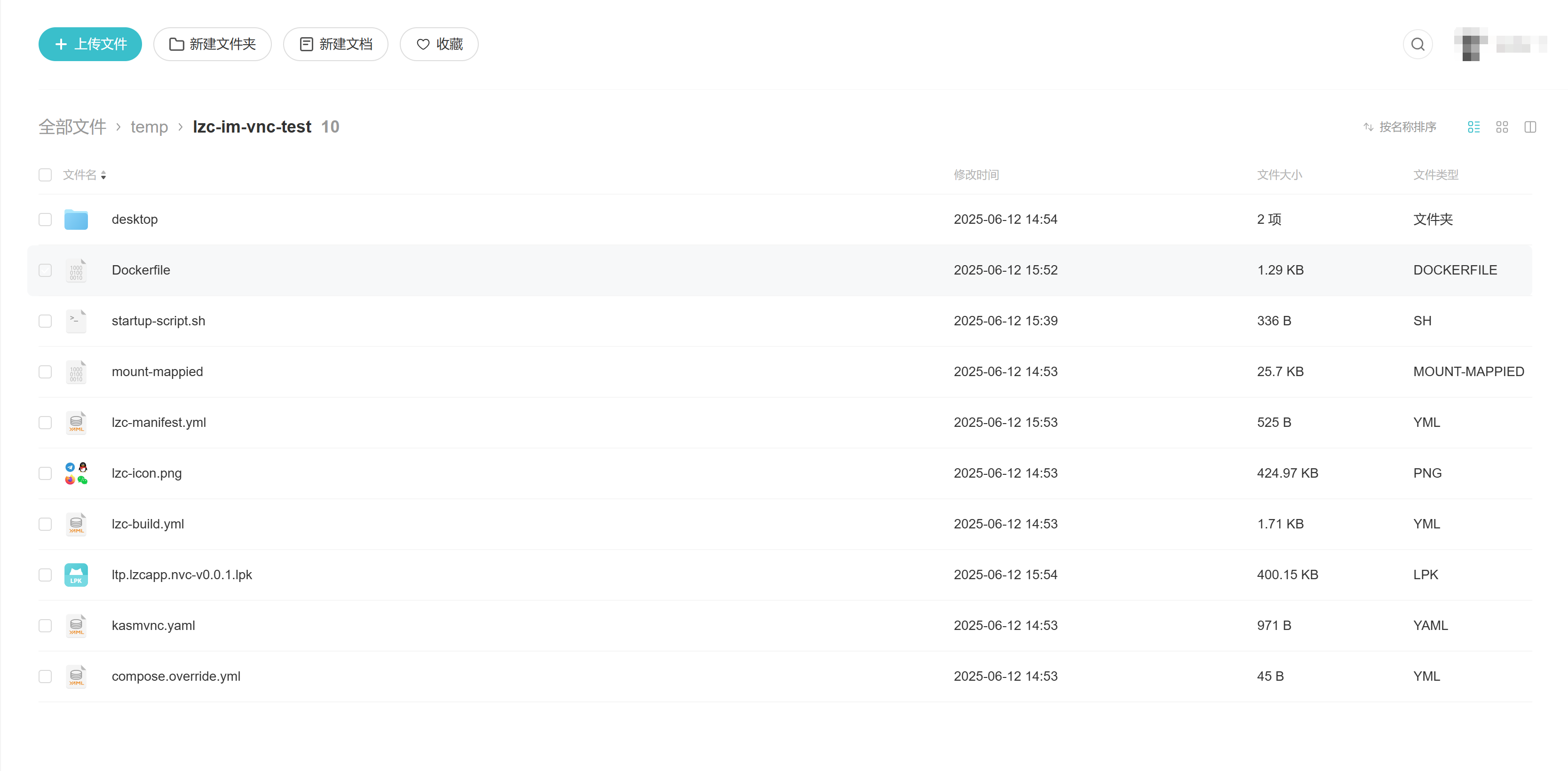
2.2 Build Test Image
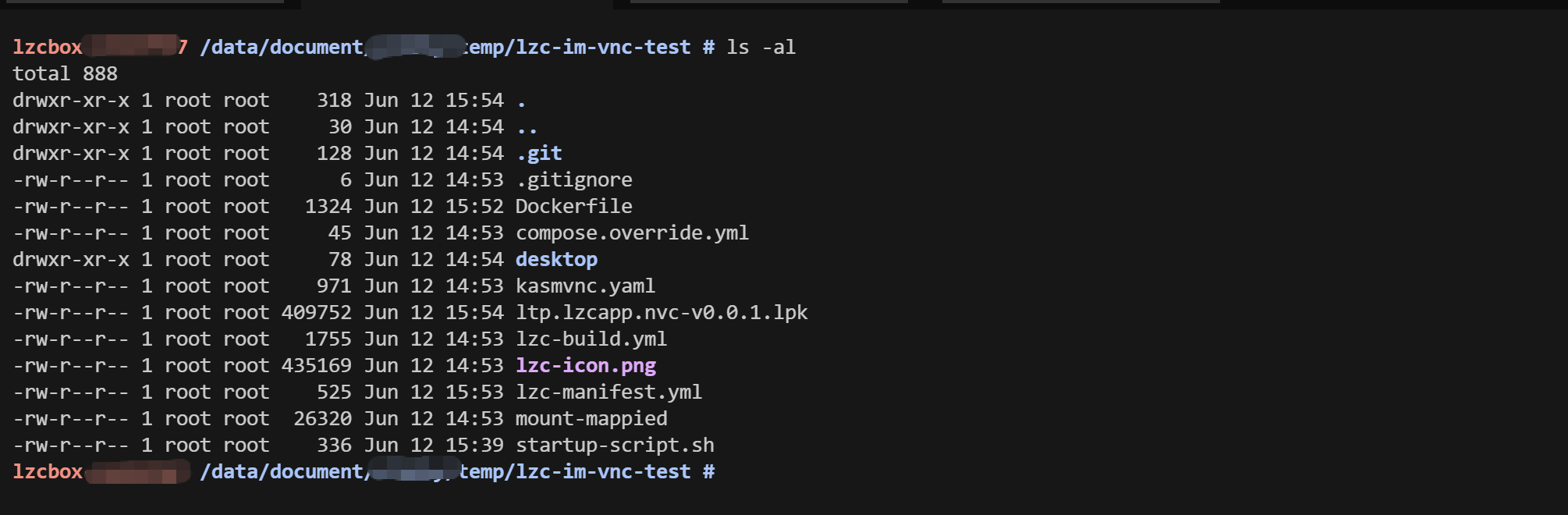
- Log in to LCMD via SSH (SSH Tutorial), find the files just uploaded. The cloud drive corresponding directory is under
/data/document/username/.
- Build Image
# Build image
lzc-docker build -t dev.BOXNAME.heiyu.space/imagename:version .

# View images
lzc-docker images | grep dev.BOXNAME.heiyu
# Build image
lzc-docker build -t dev.BOXNAME.heiyu.space/imagename:version .
# View images
lzc-docker images | grep dev.BOXNAME.heiyu
If building a test image, you must tag the image as
dev.$BOXNAME.heiyu.spaceaddress, where$BOXNAMEis the target LCMD name. For details, see LCMD Developer Manual - Development Test ImagesWhy use lzc-docker, see LCMD Running Three Sets of Docker on One Machine?
- Push Image
lzc-docker push imagenamelzc-docker push imagename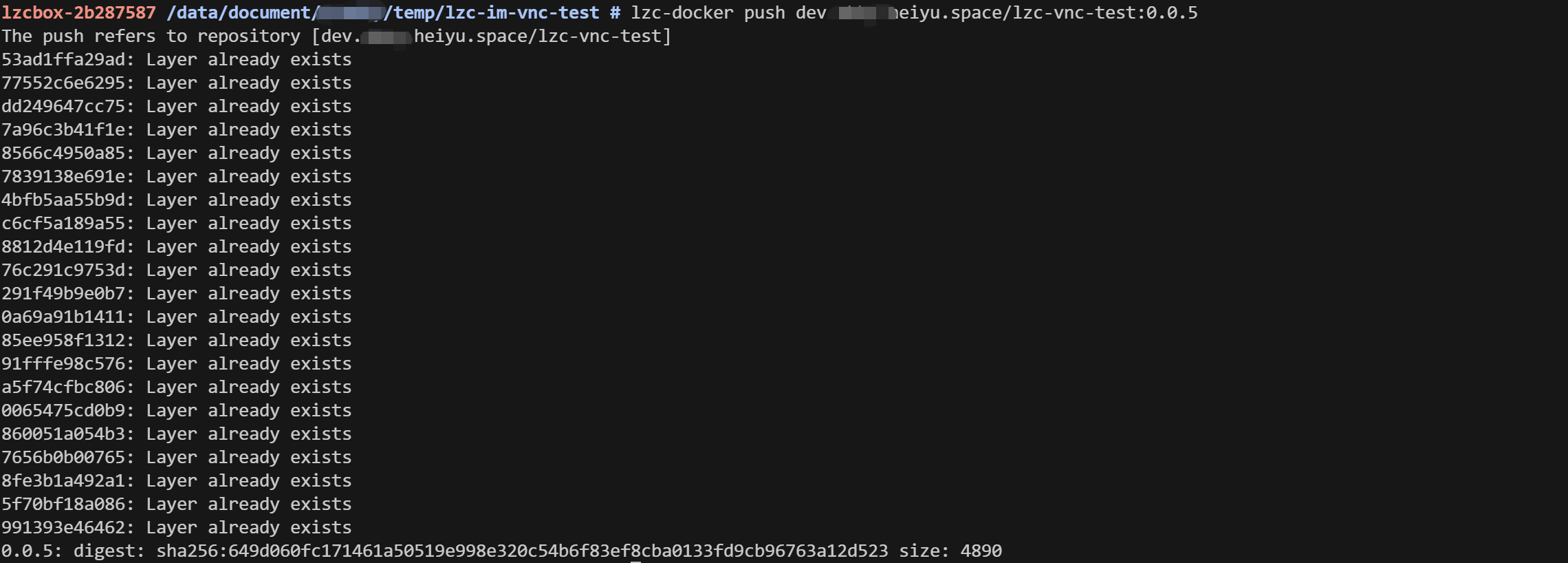
After the upload is complete, you can replace the image address in lzc-manifest with the image just pushed. Below is the lzc-manifest.yml in lzc-vcn-sample
lzc-sdk-version: 0.1
name: lzc-vnc-test
package: ltp.lzcapp.vnc
version: 0.0.1
description:
license: https://choosealicense.com/licenses/mit/
homepage:
author:
application:
  subdomain: im2
  routes:
    - /=http://imallinone.ltp.lzcapp.vnc.lzcapp:6901
  depends_on:
    - imallinone
  multi_instance: true # Whether to enable multi-instance
  background_task: true # Whether there are background tasks. If yes, the system will not actively hibernate this app

services:
  imallinone:
image: Replace with the image just pushedlzc-sdk-version: 0.1
name: lzc-vnc-test
package: ltp.lzcapp.vnc
version: 0.0.1
description:
license: https://choosealicense.com/licenses/mit/
homepage:
author:
application:
subdomain: im2
routes:
- /=http://imallinone.ltp.lzcapp.vnc.lzcapp:6901
depends_on:
- imallinone
multi_instance: true # Whether to enable multi-instance
background_task: true # Whether there are background tasks. If yes, the system will not actively hibernate this app
services:
imallinone:
image: Replace with the image just pushedBuild lpk package through lzc-cli project build, install image with lzc-cli app install xxx.lpk
If you are not familiar with building lpk packages, please see the developer manual Develop Your First lpk Application
😃 3. Open Application to Verify
If you followed the tutorial step by step, you can see an application named: lzc-vnc-test in your launcher tray