How to Start Custom Scripts on Boot
WARNING
We strongly recommend that you do not modify system files in any way. If destructive operations occur, it may cause all rescue mechanisms of LCMD to fail.
If you must modify the system, it's recommended to add a 5-minute delay to have enough time to disable startup scripts
Some developers who have applied for SSH permissions or senior users with technical capabilities will find that their boot startup scripts configured through systemd or other methods cannot run like normal Linux distributions after restarting LCMD MicroServer. This is because the LCMD system will restore system modifications to initial state after restart. However, after introducing playground-dockerLCMD system v1.1.0, you can run some custom scripts on boot by using playground-docker features.
v1.3.7-alpha.1+ supports systemd --user method to start user scripts
Create a service file with any name in the ~/.config/systemd/user/ directory, for example:
lzcbox-a85a42da ~/.config/systemd/user # cat setup-apt-mirror.service
[Unit]
Description=Switch apt source to Mainland China and automatically install htop
After=network.target

[Service]
Type=oneshot
ExecStart=sh -c 'apt install -y htop'

[Install]
WantedBy=default.target
Then use systemctl --user enable setup-apt-mirror.service to automatically run on boot
Configuration Method
Download the Dockge application from the LCMD store
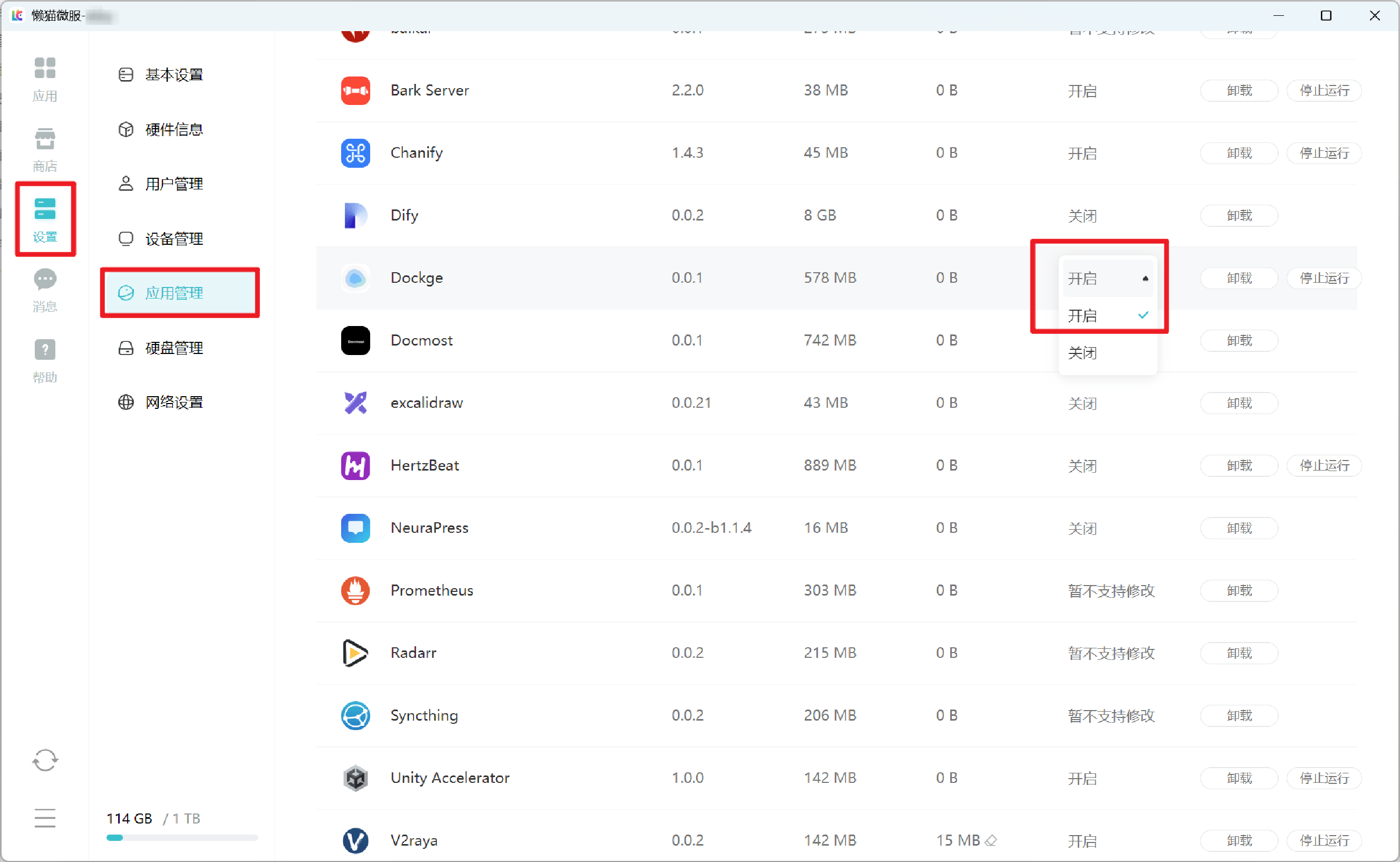
In LCMD Settings -> Application Management -> Find the Dockge application and set "Application Auto-start" to "Enable"
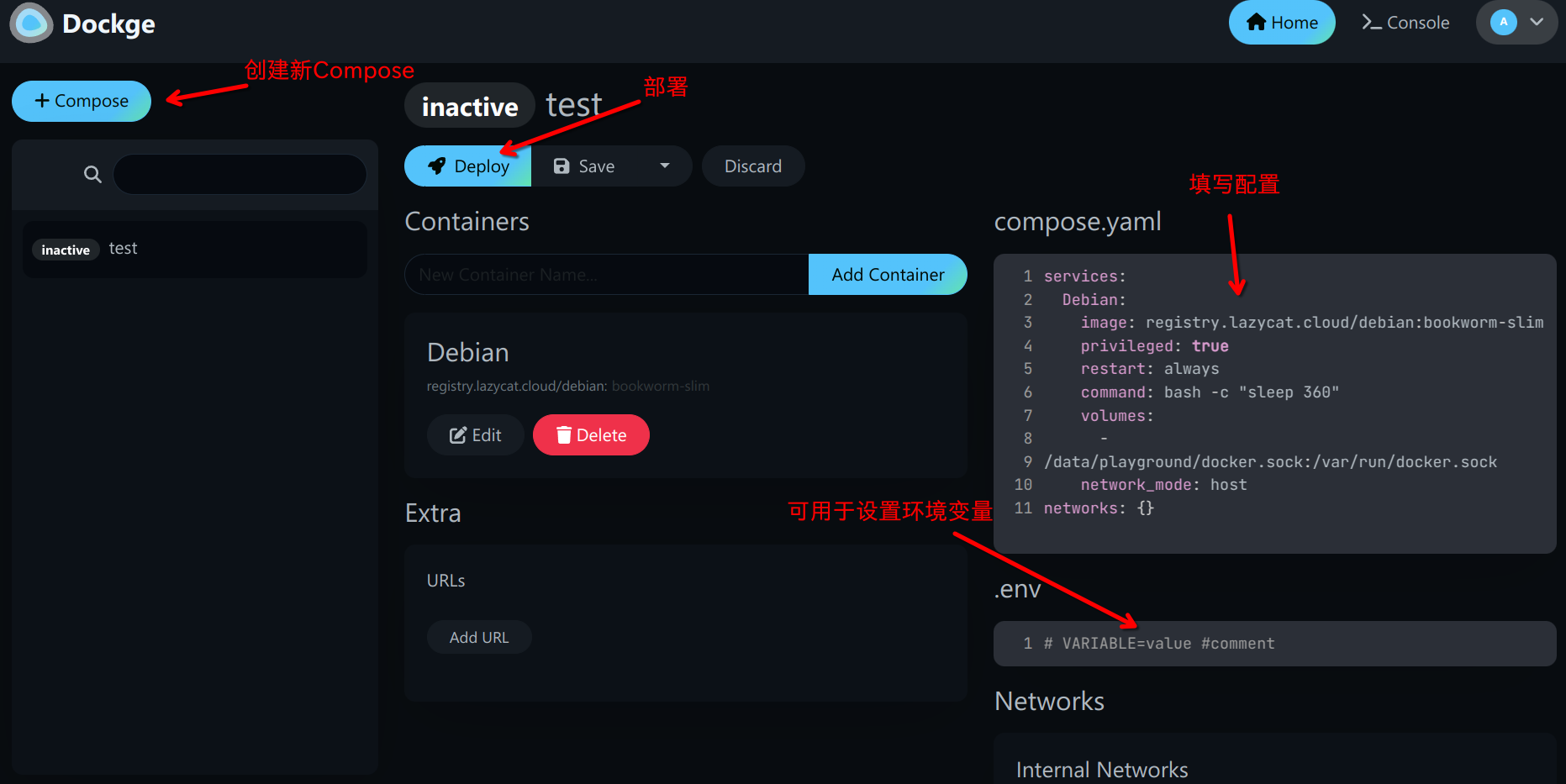
- Open Dockge in the application and create a new compose configuration, set the container name. The compose configuration can refer to the example given below. After configuration is complete, click deploy.
services:
  Debian:
  #Service name can be modified by yourself
    image: registry.lazycat.cloud/debian:autostart_mod
    #This image can be pulled directly in LCMD MicroServer without configuring proxy
    privileged: true
    #Note: if the script doesn't need to modify the system, don't add this
    restart: always
    entrypoint: /bin/init
    #Here you need to use init to prevent container restart after script ends
    command: sh /data/document/<username>/<cloud storage path>/script.sh
    #Set the command at startup, note the path of the script in this container
    volumes:
      - /data/document/<username>:/data/document/<username>:ro
      #This configuration mounts the cloud storage directory to the /data/document/<username> directory in the container. The ":ro" at the end is used to prevent modification of the cloud storage directory. This field can be modified as needed
      - /data/playground/docker.sock:/var/run/docker.sock
      #This configuration can bind the playground-docker socket file to the container, allowing the container to modify playground-docker.
    network_mode: "host"
    #Adding this field and combining with privileged can control LCMD system network devices